
WordPress incident response
Google Ads suspended my website for malicious software
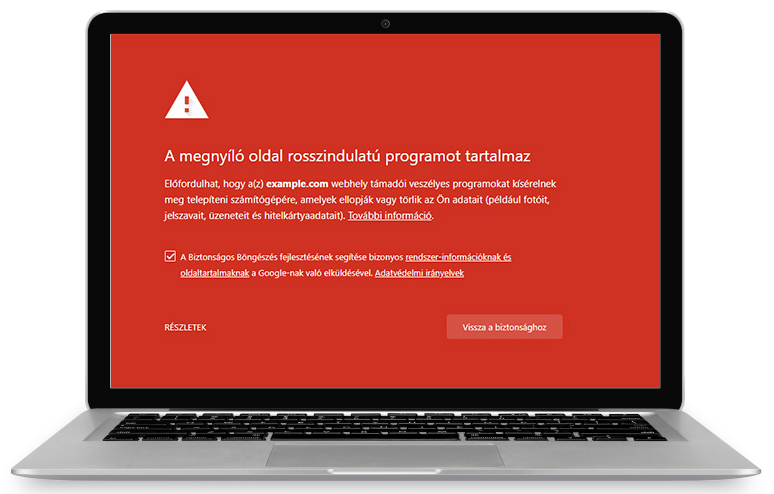
Google Ads suspended my website for malicious software
If Google Ads suspended your website for malicious software, it usually means that the landing page, one of its internal pages, or a resource loaded by the site was flagged as suspicious. The site may still look normal to you. The WordPress admin may work, the homepage may load, and your security plugin may report no issue. That does not prove the site is clean.
For a business, this is painful immediately. Campaigns stop, leads disappear, and the warning inside Google Ads often gives very little technical detail. The wrong first move is repeatedly requesting a review without proving that the underlying issue has been removed. The better path is to investigate the website, remove the infection or suspicious behavior, and only then submit the site for review.
Common symptoms
A Google Ads malicious software suspension can show up in several ways:
- the ad is disapproved,
- Google Ads reports malicious or unwanted software on the destination,
- Google Search Console shows a security issue,
- browsers occasionally display a warning,
- mobile visitors see a different site than desktop visitors,
- traffic from Google or ads is redirected while direct visits look normal,
- WordPress admin works, but the public site behaves inconsistently,
- unknown PHP files appear on the hosting account,
- the page source contains unfamiliar JavaScript or obfuscated code.
Malware is not always active for every visitor. Many infections are conditional. They may trigger only for mobile user agents, specific countries, first-time visitors, Google referrers or advertising traffic. That is why the website owner or agency may see nothing while Google still flags the site.
How this usually happens on WordPress
On WordPress sites, attackers rarely replace the entire website. More often they add a small loader, redirect rule or JavaScript snippet. It can be hidden inside a plugin file, theme file, wp-config.php, an uploaded PHP file, a must-use plugin, database content or even a cache file.
Typical goals include:
- redirecting visitors to spam, crypto, pharmacy or scam pages,
- injecting SEO spam,
- downloading additional malicious code,
- keeping administrator access,
- stealing advertising traffic,
- abusing the reputation of the existing domain.
Google Ads cases are especially sensitive because the malicious behavior may only activate for ad traffic. The code can inspect HTTP_REFERER, user-agent headers, cookies or JavaScript conditions before deciding whether to redirect.
If the visible symptom is that WordPress redirects to other websites, the same incident may already be affecting your ads.
Indicators of compromise
An indicator of compromise is a clue that suggests the site may be infected. On WordPress, suspicious files often have names that look harmless:
wp-content/uploads/2026/06/class-wp-cache.php
wp-content/uploads/.cache/index.php
wp-includes/js/jquery/jquery.min.php
wp-content/mu-plugins/loader.php
Suspicious PHP patterns include:
eval(base64_decode($payload));
assert($_POST['cmd']);
preg_replace('/.*/e', $code, '');
But modern malware is not always that obvious. A tiny loader, an encoded option value in the database or an external JavaScript include can be enough to trigger the suspension.
What to check before requesting a Google Ads review
Before asking Google to review the site, check at least these areas:
- WordPress core, plugin and theme files,
wp-content/uploadsfor executable PHP files,wp-content/mu-plugins,.htaccessand server-level redirects,wp-config.php,- active and inactive plugins,
- theme templates and
functions.php, - database fields containing
<script>,iframe, redirects or encoded payloads, - admin users and recent login activity,
- HTTP access logs,
- cache and CDN layers,
- third-party scripts loaded by the site.
Also check the URL in the Google Safe Browsing Transparency Report. It does not replace a technical investigation, but it helps confirm whether Google still sees a problem.
Why a simple plugin scan may not be enough
A WordPress security plugin is useful, but it is not a full incident response process. A scanner usually looks for known malware signatures, changed files and configuration issues. It may miss code that is new, conditional, database-only, hosted outside the WordPress tree, hidden in cache or loaded from a third-party source.
This is why a site can look clean in WordPress while Google Ads still rejects it. We cover this exact problem in the article Wordfence says the site is clean, but it is still infected.
A practical recovery process
A reliable cleanup should follow a clear order:
- Reproduce the problem from different devices, referrers and user agents.
- Collect server logs and suspicious HTTP requests.
- Identify modified files, unknown users and external scripts.
- Remove malware and backdoors.
- Update WordPress core, plugins and themes.
- Rotate admin, FTP, SSH, database and hosting passwords.
- Clear application, plugin, CDN and browser caches.
- Re-test the site as a visitor, not only as an admin.
- Request Google Ads review only after the issue is fixed.
WordPress hardening also matters after cleanup. The official WordPress hardening guide is a useful starting point, but an infected business site usually needs monitoring, backups and log-based investigation as well.
When to ask for help
You should involve a specialist if advertising is stopped, the infection comes back, the redirect only appears for some visitors, or the site contains business-critical lead generation pages.
The goal is not only to make the warning disappear. The goal is to find the entry point, remove the backdoor and prove that the site no longer serves suspicious behavior to Google, customers or advertising traffic.