
WordPress recovery
Restore from backup or clean the infected WordPress site?
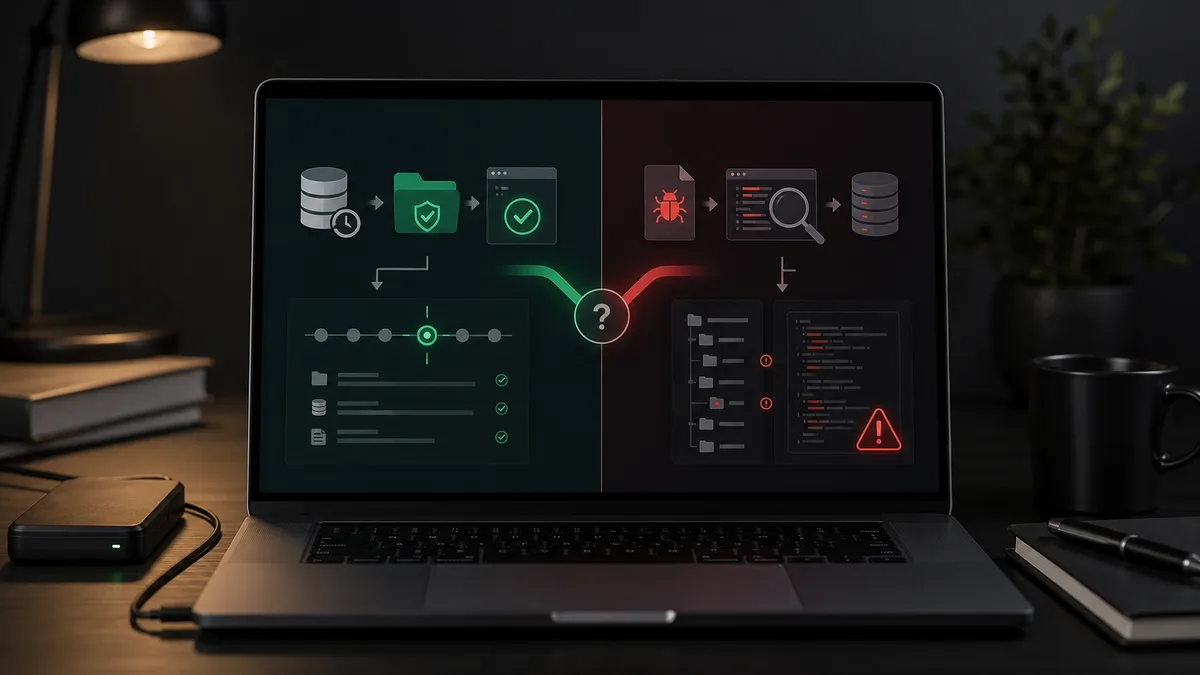
Restore from backup or clean the infected WordPress site?
When a WordPress site has malware, infected WordPress restore backup looks like the fastest fix. One click, old state, done. Except it is not always done.
A backup is useful if you know which restore point is clean and you close the attacker's entry point. If you do not know that, restoring can simply take you back to an older infected state. The visible problem may disappear for a few hours, then return because the vulnerable plugin, stolen password or backdoor is still there.
When backup restore makes sense
It makes sense when you know when the compromise happened, you have a clean backup from before that date, and the site has not changed much since. In that situation, WordPress backup restore can be a clean recovery point.
For a small brochure site, this can work. If a file changed last night, you have a clean backup from three days ago and no orders, leads or content updates were created during that time, restoring is a reasonable first move.
For a webshop, the calculation changes. Restoring a two-day-old database can delete orders, customer records, stock changes, coupon usage and payment status updates. In that case targeted cleanup is often safer than full rollback.
When restoring is risky
Restoring is risky when you do not know how long the site has been infected. A WordPress virus can stay quiet for weeks. Yesterday's backup, last week's backup and last month's backup may all contain the same backdoor.
Be careful when:
- Google already indexed spam pages,
- an unknown admin account appeared,
- malware returns after deletion,
- several sites share the same hosting account,
- the hosting provider reported malware,
- scanners show clean but symptoms remain,
- the compromise date is unknown.
In these cases the backup is evidence, not a final answer. It can help compare files, but blind restore is a gamble.
Why cleanup is often needed
The goal is not to hide the visible symptom. The goal is to remove persistence. On an infected WordPress site, you need to inspect core files, plugins, themes, uploads, mu-plugins, database records, administrators, cron events and logs. WordPress virus cleanup means closing the attacker's return paths, not only deleting one suspicious file.
If you only restore, you may never learn how the attacker got in. If it was a vulnerable plugin, patch it. If a password leaked, rotate it. If a fake admin remains, remove it. If cron recreates the malware, find the task.
We wrote more about this pattern in why WordPress gets reinfected after cleanup.
The better order
The real question is not backup or cleanup. It is order.
First, save the current infected state for investigation. Then identify the type of compromise. If you have a known-clean backup and can restore without losing important data, use it. If not, perform targeted file and database cleanup.
After that, rotate access:
- WordPress administrators,
- hosting panel,
- SFTP/FTP,
- database,
- API keys,
- application passwords.
Then test from several viewpoints: normal browser, mobile, Search Console, server logs and file monitoring. Some WordPress malware activates only for specific traffic.
What if the site must work now?
If the site generates revenue, receives paid traffic or serves customers, trial and error is a bad plan. You need containment, evidence preservation, cleanup, recovery and monitoring. In that case, WordPress malware removal has to protect orders, leads and recent changes as well.
WebShield managed WordPress protection helps because recovery is not just about having backups. It also includes logging, frequent backups, expert response and follow-up checks. Backup matters. It is not a security strategy by itself.
Quick rule
If you know the infection date, have a clean backup and can restore without losing business data, restore.
If you do not know how long the WordPress site has been infected, if orders or leads changed, if malware returns, or if the entry point is unknown, clean it. This is where hacked WordPress recovery becomes more than restoring yesterday's files.
For a reliable result, use both ideas properly: backup for recovery, cleanup for removing the compromise.