
WordPress incident response
An unknown admin user appeared in WordPress - what should I do now?
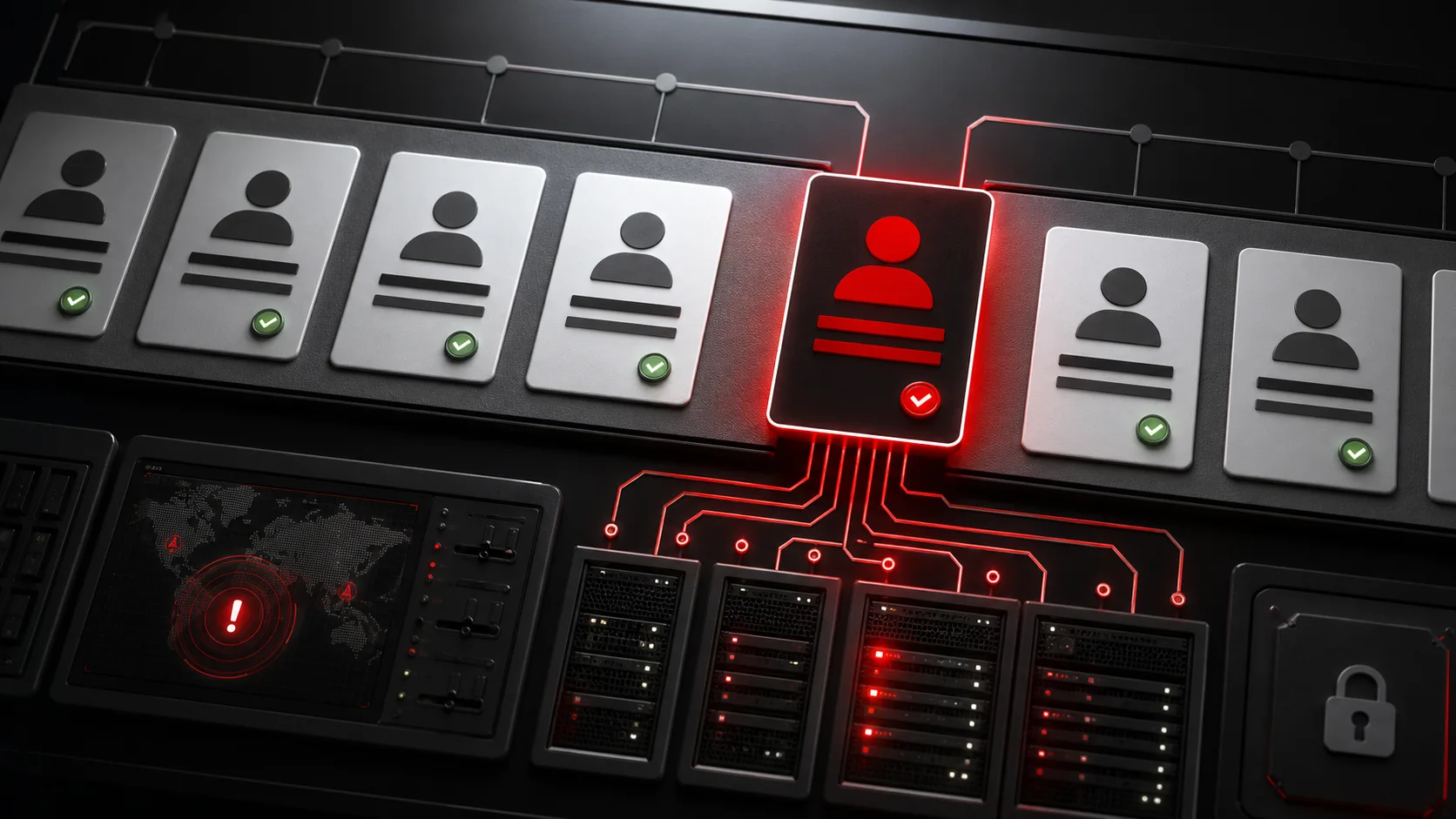
An unknown admin user appeared in WordPress - what should I do now?
If an unknown admin user appears in WordPress, treat it as a security incident. An administrator can control content, users, plugins and, in many configurations, execute PHP code on the server. Deleting the account is necessary, but it does not explain how the account was created or what happened while it existed.
A colleague or agency may have created it legitimately, but do not assume that without confirmation. Verify the owner, registration time, related logins, installed components and file changes. Preserve enough evidence to investigate while removing the attacker's active access quickly.
Signs that make the account suspicious
- nobody recognizes the username or email address,
- the email uses an unrelated domain,
- the name looks like
wpservice,support,backupor random text, - the account has administrator privileges,
- no maintenance was planned when it appeared,
- a plugin or theme was installed at the same time,
- redirects, spam or file changes started afterwards,
- the account is hidden from the normal user list,
- it reappears after deletion,
- an application password or active session belongs to it.
If the account returns, automated persistence is likely. Review the causes of WordPress reinfection after cleanup.
How attackers create WordPress administrators
Common entry paths include:
- a missing authorization check in a vulnerable plugin,
- stolen credentials for an existing administrator,
- compromised hosting or database access,
- direct SQL modification,
- a backdoor or webshell,
- an exposed registration endpoint,
- a stolen WordPress cookie or active session,
- a compromised developer workstation or password manager.
The attacker may use the account only briefly. They can install a backdoor or create an application password, then return through that secondary channel after the visible admin is removed.
What to do in the first 15 minutes
- Take a screenshot and record the account ID, username and email.
- Preserve access, error and security logs.
- Put the site into maintenance mode if the business risk requires containment.
- Disable or remove the unknown account.
- Do not automatically assign its content to another user before review.
- Invalidate all active WordPress sessions.
- Reset passwords for legitimate administrators.
- Regenerate WordPress salts.
- Enable multifactor authentication.
- Avoid blindly deleting files before preserving evidence.
If the attacker is active, containment takes priority. Still try to preserve an application and database snapshot plus the relevant logs for later analysis.
What to inspect in the database
WordPress stores core user records in wp_users and capabilities in wp_usermeta. Your table prefix may differ.
SELECT ID, user_login, user_email, user_registered
FROM wp_users
ORDER BY user_registered DESC;
SELECT user_id, meta_key, meta_value
FROM wp_usermeta
WHERE meta_key LIKE '%capabilities%'
   OR meta_key LIKE '%user_level%';
Check:
- registration time,
- role and user-level metadata,
- application passwords,
- session tokens,
- posts associated with the user,
- other accounts created around the same time.
The user_registered value can be manipulated, so correlate it with server logs and file changes rather than treating it as definitive evidence.
Log and file indicators
In access logs, inspect:
- POST requests before account creation,
- requests to
wp-login.phpandxmlrpc.php, - user-related or plugin REST endpoints under
/wp-json/, - unusual
admin-ajax.phpactions, - plugin upload and editor operations,
- direct requests to recently created PHP files.
Review:
wp-content/plugins/
wp-content/themes/
wp-content/mu-plugins/
wp-content/uploads/
wp-config.php
.htaccess
Look for unknown files, recent changes, remote code loaders, hidden account-creation code and scheduled tasks. Malicious code may call wp_insert_user and then assign the administrator role.
Why deleting the account is not enough
While the account existed, the attacker may have:
- installed a plugin,
- modified a theme,
- created a webshell,
- exported customer data,
- added an application password,
- changed payment or email settings,
- generated search spam,
- scheduled code that recreates the administrator.
If search results already contain unwanted URLs, follow the guide to removing Google-indexed spam pages. If visitors are redirected, investigate WordPress redirect malware.
Recovery and credential rotation
Based on the investigation:
- remove every unauthorized user,
- revoke application passwords and sessions,
- reset all legitimate administrator passwords,
- rotate hosting, SFTP, database and API credentials,
- reinstall core, plugins and themes from clean sources,
- patch or remove the vulnerable component,
- remove backdoors,
- verify email, payment and integration settings,
- clear all cache layers,
- monitor user and file changes closely.
For a webshop, review what order and personal data the administrator could access. A possible data breach may create privacy and legal notification obligations.
Containment, recovery and business continuity
Not every incident requires immediately taking the entire website offline. Decide based on evidence of an active attacker, sensitivity of accessible data and the website's business role. A short maintenance window may be acceptable for a brochure site, while an online store requires balancing downtime against continued exposure.
Containment options include:
- temporarily restricting administration by IP,
- disabling plugin and theme file editing,
- reducing unnecessary write permissions,
- revoking compromised integration keys,
- checking payment and email workflows,
- creating a forensic copy in an isolated environment,
- rebuilding a clean instance when the current system cannot be trusted.
Do not launch the recovered instance with the same credentials. If the attacker obtained passwords or API keys, they can enter an otherwise clean system again.
What to document during the incident
A concise incident log supports technical analysis, customer communication and possible legal review. Record when and by whom the unknown admin was discovered, the account ID and role, first and last known activity, and which evidence was preserved.
Also record when the account was disabled, which credentials and keys were rotated, which files or settings changed, whether personal data may be affected, and what monitoring was enabled after recovery.
Do not store passwords in the incident log. Record only that a credential was changed and who owns the action. In an agency environment, document which party controls hosting, WordPress admins, DNS and third-party integrations so no access route remains unassigned.
A separate checklist for WordPress agencies
When managing a client website, first establish who can authorize incident-response decisions. Do not email passwords or create one shared administrator account simply to speed up recovery.
Check whether:
- the same username or password exists on other client sites,
- a shared hosting account or deployment key is involved,
- credentials stored on developer workstations are protected,
- access was shared outside the approved password manager,
- an outdated staging site is publicly reachable,
- the central management platform may be compromised,
- other clients need to be notified.
If one technical account is an administrator across many websites, a leaked password can affect multiple clients. Rotate it everywhere the same user, API key or deployment credential is used, not only on the site that raised the alert.
Give clients factual status updates: what is confirmed, what remains a hypothesis, what containment is active and when the next update will arrive. Do not claim that data was stolen without evidence, but do not prematurely guarantee that no access occurred.
When is the incident closed?
After deleting the account, verify that no administrator is recreated, no unknown session remains, the vulnerability is patched, credentials are rotated and file monitoring shows no new change. Record the basis for closure and define a continued observation period.
Prevention
- Require unique passwords and multifactor authentication.
- Give administrator rights only when necessary.
- Review the user list regularly.
- Log sign-ins, account creation and role changes.
- Apply managed WordPress updates promptly.
- Disable dashboard file editing where practical.
- Protect developer and hosting accounts as carefully as WordPress.
- Maintain frequent off-site backups.
The WordPress security FAQ provides additional checks for access control, backup and monitoring.
When to call an expert
Get immediate help if the account returns after deletion, customer or order data may be affected, logs are unavailable, several sites share the hosting account, or you cannot rule out a backdoor.
WebShield treats an unknown administrator as evidence of a wider compromise, not an isolated user-management error. For urgent containment and recovery, start with the SOS recovery options.
Special cases to consider
In WordPress Multisite, a network administrator has broader access than a normal site administrator. Review network users and determine which sites the suspicious account could control.
For WooCommerce, inspect payment gateways, webhooks, refunds and order exports. An administrator may change bank details, notification addresses or payment integrations without deploying obvious malware.
If the account is missing from the normal user screen, compare the interface with database records. A malicious plugin can modify the admin query or hide a row with CSS and hooks.
Also consider:
- external identity providers or SSO,
- hosting-provider automatic admin login,
- staging sites sharing production credentials,
- user creation through a REST endpoint,
- old application passwords,
- publicly exposed database administration tools.
In these environments, changing the WordPress password alone cannot close every access channel.
Validation after recovery
During the following days, monitor new users, role changes, failed and successful logins, plugin installation, file changes and requests from suspicious IP addresses. Configure an alert for every new administrator.
Verify that sessions and application passwords associated with the removed account are actually invalid. Reproduce the suspected entry path after patching. If an exposed endpoint caused the incident, it must no longer perform the action without proper authorization.
Close the incident only when active access is removed, persistence is gone, the entry point is fixed, affected data has been assessed and post-recovery monitoring is operating.
Conclusion
Disable an unknown WordPress administrator quickly, but preserve essential evidence first. Rotate credentials, invalidate sessions and investigate the database, logs, plugins and files. The real objective is to determine how the account was created, what it changed and whether the attacker retained another access method.